


A semester in Israel does not require a suitcase full of new tech. Start with three questions. Will your phone work when you arrive? Can your devices run the tools your courses require? Can you charge everything safely? Once those basics are covered, a few well-chosen accessories can make dorm life, study sessions, and weekend trips easier, without duplicating what you already own.
1. Start With Your Course Requirements, Not a Shopping Cart
Begin with what you will actually be doing: reading, writing, submitting assignments, joining online sessions and, in some courses, sitting exams on a school-specified platform. Your program’s website, welcome email and housing information usually list the devices, software and accounts you need. If the laptop, tablet and phone you already own meet those requirements, there is no reason to replace them.
Students heading to a yeshiva, seminary or gap-year program should also ask the program about its rules on phones, tablets and laptops before packing. Policies differ, and it is easier to ask what is allowed, and when, than to carry something you cannot use.
2. The Quick Checklist: Essentials First, Extras Later
Use this as a sorting guide before you spend anything.
Stage - What to check?
Confirm before you leave: Phone plan for arrival; course requirements; the input label on each charger; plug compatibility; whether you can log in to every account you need.
Bring what you already own: Matching chargers and cables; your current phone case or laptop sleeve; any adapter you know you will need.
Buy after the need is clear: iPad keyboard, stylus, wireless charging stand, screen protector, power bank.
You do not need to replace a working device or cable just to move everything to USB-C. Take stock of the ports you actually have first.
3. Get Your Phone Working Before You Need It
Your phone is how you will find your building, reach your program, and receive verification codes, so settle the plan before the flight. These are the questions to answer:
● Is the phone unlocked, and does it support the SIM or eSIM you plan to use? Your current carrier can confirm.
● Do you need one plan for the first few days and another for the whole semester? These are often separate decisions.
● Is the plan data only, or does it include a local number, calls and texts?
● Will you still need your home number for verification codes?
● Does the provider accept a foreign passport and your usual payment method? Some people have reported running into plans that ask for a local ID number. Whether that applies to you depends on the provider and the plan, so ask before you pay.
● How do you activate, cancel and renew, and does customer support work in a language you speak?
This article does not recommend a provider or quote prices, because plans and coverage change. Confirm current terms with the provider or your program’s student office.
4. Build a Charging Setup for Israel and Your Actual Devices
Start with the supply and the label
Israel’s mains supply is 230V at 50Hz, which is close to much of Europe and different from the 120V used in the United States and Canada. Read the small print on each charger. A label reading “100-240V, 50/60Hz" means the charger accepts worldwide input, so a plug adapter is usually all you need. A charger rated only for a lower voltage needs a voltage converter, or a different charger. An adapter changes the shape of the plug. A converter changes the voltage. They are not interchangeable.
Israeli sockets are commonly described as accepting Type C and Type H plugs. A two-pin Type C plug generally fits, but a grounded European plug may not seat properly or make the ground connection, so “it worked in Europe" is not enough. Check the sockets where you will live and match the adapter to them.
Match the charger to your devices
If you carry a phone plus a tablet or laptop, look first at the wired ports: the power each one delivers on its own, and how it is divided when two devices share a charger. A wireless station suits a different combination, such as a phone, watch and earbuds, and it will not charge an iPad or a laptop.
If you already own a compatible phone, watch and earbuds and want one fixed spot on your desk for them, wireless charging stations for compatible phones, watches and earbuds are one option. ESR, which sponsors this article, sells them. Its own listing advises confirming the supported models, charging output and included power adapter on each product page rather than choosing by wattage alone.
Charger checklist
● Input voltage and frequency
● Plug or adapter fit for the sockets you will use
● Port types and how many you get
● Power per port, and total power when devices share the charger
● Cable specification and length
● Whether a power adapter is included
● Safety documentation and warranty terms
5. Does Your iPad Need to Replace a Laptop?
An iPad can handle a good share of coursework, but whether it can stand in for a laptop depends on the course. Start with the tasks.
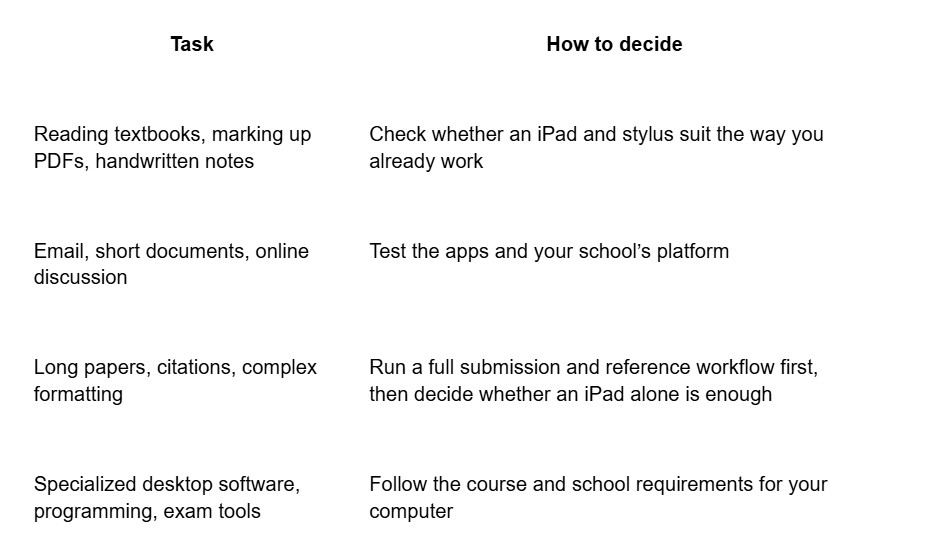
Decide by whether the work can be completed on the device. Three setups cover most cases:
● You own a laptop and want the iPad for reading and handwriting. A slim case, a stylus and a stable way to prop it up may be all you need.
● The iPad will do regular typing. Consider a keyboard case or a separate keyboard.
● A course depends on specific computer software. Keep a suitable laptop and treat the iPad as a supplement.
If you are choosing a keyboard, check these points:
● The exact model, generation and screen size of your iPad
● The key layout, and whether it covers the language you need to type in
● How it connects, and whether it needs charging of its own
● Whether you can detach or adjust it for handwriting
● How much desk space the stand takes up, and the combined weight of iPad, case and keyboard
● Where the stylus is stored and how it charges
If the iPad will be doing regular typing, iPad keyboard cases are worth a look. ESR, the sponsor of this article, makes them for several iPad Pro, iPad Air and standard iPad models, and some designs detach, which helps if you switch between typing and handwriting. Its listings note that features vary by model and iPad generation, so match your exact model before ordering.
6. Protect the Devices You Already Own
A case you already own may be enough, so check what you have before you buy.
For phones, look at corner coverage, grip, the area around the camera and whether the case works with the way you charge. For an iPad, think about how it will travel in a backpack, how stable the stand is on a small desk and where the stylus goes. Screen protectors come down to preference: scratch resistance, writing feel, how the display looks and how easy they are to install. Not every student needs one.
Be careful with promises. No case or film guarantees protection from drops or cracks, and an accessory does not by itself reduce repair costs. If repairs matter to you, read the actual warranty or insurance terms for your device.
7. Pack a Weekend Kit, Not a Second Desk Setup
The simplest weekend kit is a subset of what you already use in the dorm.
● A charger that covers the devices you carry
● The matching cable, and a spare if you have one
● A power bank, only if the trip is long enough to need one
● The case or protection you already use
● A pouch you already own; a dedicated organizer is optional
Some items are conditional. A foldable wireless charging stand makes sense only if you own the phone, watch or earbuds it is built for. A car charger matters only if you will actually be traveling by car.
Power banks and other lithium batteries are subject to airline and aviation-authority rules. Check your carrier’s current policy before packing one.
8. What to Pack-and What to Buy After You Arrive
A short comparison of what to settle first and what can wait.
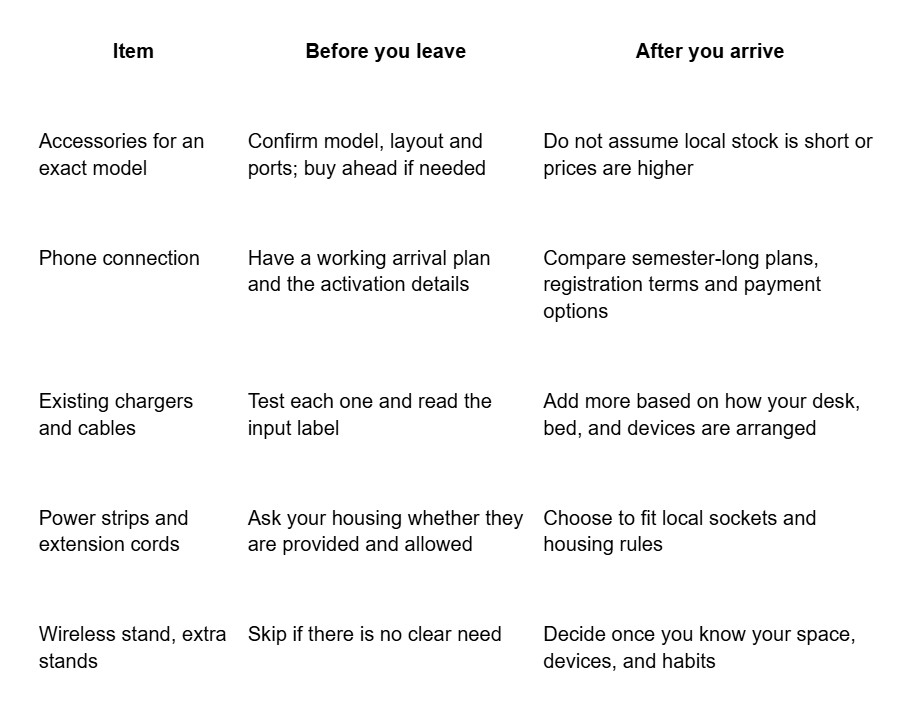
This article does not compare prices between countries or promise delivery times. Check both for your own order.
9. Protect Your Accounts as Well as Your Screens
Do these before you leave:
● Back up your phone, tablet and laptop, and test that you can restore from the backup.
● Check two-factor authentication and recovery options for email, banking and school accounts. If codes go to your home number by text, set up an authenticator app or backup codes before you change SIM.
● Turn on device-finding features and a screen lock.
● Keep offline copies of key documents and course files.
● On public Wi-Fi, keep software updated, prefer sites that use HTTPS and avoid sensitive transactions on networks you do not know.
If your school’s IT department publishes its own guidance, follow that where it differs.
10. The Final Ten-Minute Check
1. How will your phone connect on arrival, and where are the activation details?
2. Have you tested the software and submission platforms your school requires?
3. Does the input label on each charger fit the local supply?
4. Does each adapter match the sockets at your destination and the requirements of your device?
5. Do your cables connect your devices and support the charging you need?
6. Do your iPad case, keyboard and stylus match your exact model?
7. Are your backups, verification methods and account recovery ready?
8. Which optional accessories can wait until you have seen your room?
The best setup is the smallest one that meets your course requirements, keeps you connected, and works with the devices you already own.