

Turning a script into video starts with deciding what the audience should see in each scene. An AI image generator can help creators develop original storyboard frames or backgrounds when they do not already have suitable visual assets. The images establish subjects, settings and a consistent visual direction; they do not by themselves determine pacing, narration or motion. A useful first step is to break the script into short, clearly described visual beats.
This guide follows a two-stage creative process: translate a written idea into a visual plan, create or select still images, then develop motion and edit the sequence. It is designed for bloggers, educators, small businesses and storytellers who need a coherent visual narrative rather than a collection of unrelated clips.
Why image planning comes before video generation
A written idea can lead to two different assets. Image generation creates a still composition that establishes the subject, setting, framing and style. Video generation explores motion, camera behavior and the passage of time. Using both stages deliberately makes it easier to identify a weak visual concept before spending time on multiple moving clips.
A longer written document cannot usually be treated as one precise visual instruction. To turn an article or script into a coherent video, you need to identify its key points, break them into scenes and decide which parts need narration, captions, graphics or generated footage.
AI-generated clips can illustrate ideas and fictional situations, but they should not be mistaken for authentic footage of real people, products or events. Use verified material when viewers need factual evidence.
Two starting points: a scene prompt or a complete script
Prompt-to-video begins with a visual description: “A paper boat floats down a narrow stream, gentle camera tracking, soft afternoon light." The output is a short visual scene. This is useful for mood shots, creative experiments and visual storytelling.
Script-to-video begins with structured information: an article, lesson, advertisement or narration. The creator chooses which ideas to show, prepares multiple visual prompts and combines clips with spoken or on-screen text. Some software offers automated script assembly, but the exact capabilities depend on the tool.
For example, “A bicycle moves through a misty forest" is a visual prompt. “Three reasons cycling can fit into a daily routine" is a content outline that needs several scenes and accurate explanatory text. Treating them as interchangeable often produces attractive but uninformative videos.
Step 1: Choose text with one clear message
Start with a short paragraph, an existing blog post, a product description or a story excerpt. Identify the intended audience and the one idea they should remember.
For an article, highlight three to five essential points rather than trying to animate every sentence. A tutorial may need exact steps and real screenshots. A fictional story can use imaginative scenes. A product overview may combine genuine product images with conceptual background footage.
Write a short video objective such as: “Explain the three benefits of organizing a home workspace in under a minute." That sentence helps you decide which source details belong in the video and which can remain in the original article.
Step 2: Build a storyboard with clear visual beats
Convert the message into a storyboard. For the workspace example, frame one could establish a cluttered desk, frame two show a practical storage solution, and frame three reveal the finished working environment. These images should explain the transformation even before motion is added. Decide which scenes need real photographs and which can be original illustrations.
Assign one idea to each scene. Note what the viewer sees, what the narration says and what information appears as editable text. Keep the scenes short enough that a single action remains understandable.
A useful planning table has four columns: scene, visual description, narration and on-screen text. Even if you never build a formal spreadsheet, thinking in those four categories prevents the video from relying on imagery alone.
Do not ask the generator to display exact statistics, addresses or prices. Those should be verified and added separately in an editor.
Step 3: Create consistent images, then write motion prompts
Separate the still-image prompt from the motion prompt. For an image, describe subject, setting, composition, lighting and style. For video, describe the action, camera movement and details that must remain unchanged. This prevents one prompt from having to solve visual design and animation simultaneously.
Image brief: “A neatly arranged home desk with a laptop, notebook and small plant, morning light through a window, calm editorial photography, natural colors, space for a caption, no text or logos." Motion brief for that approved image: “Slow camera push toward the notebook; keep the laptop, plant and furniture fixed; preserve the original lighting."
For a fictional story, first create a character reference: “An original illustrated fox on a lantern-lit path at dusk, watercolor texture, warm amber and deep blue palette, three-quarter view, no lettering." Then request a short side-tracking shot with a small walking action. Compare the character's face and proportions with the reference frame.
For an educational concept, first design a simplified water-cycle diagram with separate areas for evaporation, condensation and precipitation. Motion can highlight one stage at a time. Add verified labels in the editing stage rather than relying on generated lettering or treating an artistic animation as a scientific simulation.
Generate one shot at a time. When a prompt asks for several unrelated actions, the output may skip steps or change objects unexpectedly. If the first attempt looks wrong, simplify the motion or revise one detail rather than adding more adjectives.
Step 4: Turn approved visual concepts into video
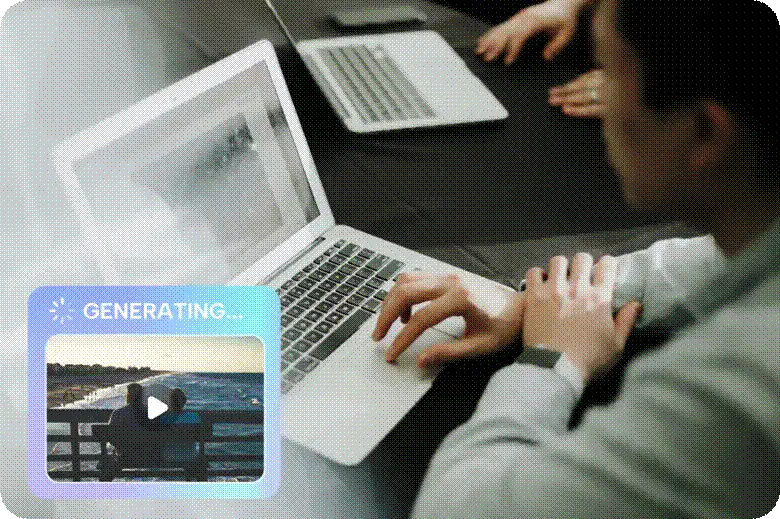
In Dreamina, test a written scene description or an authorized visual reference using the available video-generation workflow. An ai video generator is useful for comparing candidate motion, not replacing the planning stage. Check which inputs and controls are supported, then generate a short representative scene before producing the rest.
Look for recognizable subjects, stable shapes, clear action and a consistent mood. Inspect faces, hands, reflections and background objects for unexpected changes. If you are making a sequence, check whether adjacent clips feel compatible in lighting and visual treatment.
Save approved clips with descriptive filenames, such as workspace-opening-v02. Keep the original text and prompt alongside them so you can revise without losing the source idea.
A strong result is not just technically impressive. It needs to show the intended action without confusing the viewer.
Step 5: Add narration, captions and accurate information
Generated footage rarely carries an entire explanation on its own. Write narration in conversational sentences, then place each clip where it supports the spoken point. Keep the language simple enough to follow without rereading.
Add subtitles for accessibility and for people watching without sound. Check that captions match the audio and remain visible on a small screen. Use an editor to add exact numbers, names and calls to action so they can be corrected without regenerating a scene.
Choose music and sound effects with suitable usage rights. Keep them below narration in the mix. If a video includes AI-generated voices, review pronunciation, tone and the relevant disclosure expectations.
Adapt the image-to-video workflow to different content
Blog articles: Extract the main question and three useful takeaways. Use generated visuals for concepts and authentic screenshots or charts for evidence. Link viewers to the full article for details.
Product descriptions: Identify the main benefit, intended use and supporting facts. Use real product footage when appearance or function must be accurate; generated scenes can provide mood or context without fabricating demonstrations.
Educational lessons: Divide a concept into steps. Pair clear narration with diagrams, labels and simple animations. Verify every factual claim independently.
Short stories: Choose a setting, character and turning point. Create several focused shots rather than asking one prompt to tell the entire plot. Reuse visual descriptions and inspect continuity.
Social media posts: Start with a short hook and one takeaway. Build a compact sequence that makes sense even when viewed quickly on a phone.
These use cases share a process, but not the same visual strategy. A science explanation needs clarity and verification, while a fictional teaser may prioritize atmosphere and curiosity.
Step 6: Edit for pace and continuity
Arrange clips in the order that best communicates the original message. Trim repetitive moments and avoid adding transitions just because they are available.
Watch for abrupt changes in character appearance, object shape, lighting and camera direction. A change that feels minor in an individual clip can become distracting when two shots are placed together.
If a scene is difficult to fix, consider replacing it with a static illustration, a simple motion graphic or authentic footage. Text-to-video does not have to generate every second of the finished piece.
Preview the sequence without audio to see whether the visual logic is clear. Then listen without watching to confirm that narration does not depend on information available only on screen.
Common text-to-video mistakes
Using a full article as one prompt: Extract scenes and rewrite each as a visible action.
Writing vague instructions: Replace “make an engaging video" with a subject, setting and specific motion.
Overcomplicated shots: Limit each clip to one main action and one camera movement.
Assuming generated scenes are factual: Verify claims and use authentic evidence for real events or products.
Embedding essential text in generated footage: Add exact words, prices and statistics in an editor.
Ignoring platform layout: Preview captions and important subjects in the intended aspect ratio.
Skipping human review: Check visual errors, meaning, rights and accessibility before publishing.
How to evaluate image and video tools together
Test the image and video stages separately. For still images, judge composition, consistency and whether the result communicates the intended message. For moving clips, judge motion accuracy, continuity, editing flexibility and whether the output matches the approved visual direction. An impressive clip is not necessarily a useful explanation.
Check available generation modes, supported input formats, output resolution, duration limits, commercial-use terms and pricing. These features may change, so verify them on the provider's current pages before committing to a larger project.
Check how the selected tools handle revisions. A useful workflow should let you save the chosen still-image concept, compare alternative moving clips and export files that can be edited without recreating the entire sequence.
Final checklist before publishing
Ask whether the video answers the question in the original text. Confirm that every clip supports a specific point, the narration is understandable and captions are accurate.
Inspect for inconsistent motion, distorted details, awkward crops and audio problems. Verify factual statements and the permissions for source material. If generated scenes could be confused with real footage, provide appropriate context.
Export for the destination platform and test the finished video on a phone. Keep the source text and approved prompts for future updates.
The strongest AI-assisted video begins with an understandable idea and a visual plan. Original images can clarify what a scene should look like; video generation can explore how it moves. Editing, fact-checking and human judgment connect those stages into a sequence viewers can follow.